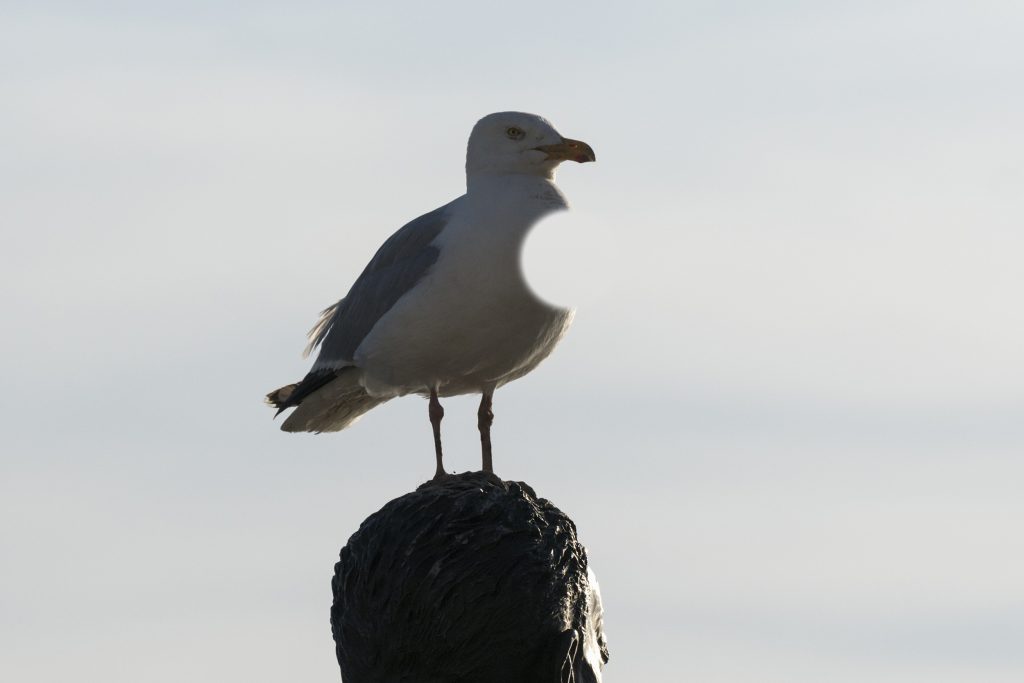
Cloning
The Clone tool – and similar tools such Patch and Spot Healing – is used to replace one area of a photo with another. This can be to repair blemishes in a photo, such as removing dust spots, or to remove unwanted elements in a photo, such as ugly pylons in a landscape, for example.
The Clone tool is a round brush that can sized between 1 pixel, for very precise cloning, to 5000 pixels, for very, very large scale cloning. (It is unlikely that you would ever use such a setting, but it is an option.) You can also adjust the softness of the brush too. A maximally soft edge will feather the cloning so that the repair is very subtle. A complete hard edge is useful for removing dust spots, particularly when you set the brush size slightly larger than the spot. However, unless you are careful you will find that the cloned area may stand out due to this hard edge. You often find that somewhere between the two extremes works for most situations. You can also adjust the opacity of the Clone tool. Finally, the opacity of the brush can also usually be altered. Use a lower opacity (so that the brush is more transparent) means you need to use repeated clicks of your mouse to gradually build up the cloning.
To use the Clone tool you first need to click in an area of the image that most closely matches the area you want repair either in terms of colour, texture or brightness (ideally all three). Once selected you then click over the area you want to repair, and repeat until all the repairing necessary in completed.